In a previous post, I showed how to code data using the OpenAI API inside R. Today, I will walk through how to do the same inside IBM SPSS Statistics, using a small dataset of text data and a bit of embedded Python code.
To be clear, an easier alternative is to use GPT-Coder, our simple web app that allows you to upload a CSV or Excel file and apply GPT-based coding without writing any code or working inside SPSS.
Now, if you must use SPSS…
Things you’ll need
You will need a file, some SPSS syntax, and an API key for your account:
- Example data (.sav): Download Reviews_small.sav
- SPSS syntax (.sps): Download SPSS_OpenAI_Coding_.sps
- Your OpenAI API key and some money added: See our post.
Step 1: Open the data file in SPSS
Open the Reviews_small.sav file by going to File > Open > Data… in SPSS. Select the downloaded .sav file.
Step 2: Open the syntax file
Open the SPSS_OpenAI_Coding_.sps file by going to File > Open > Syntax… in SPSS. This file contains the Python code that will send your text data to the OpenAI API.
Step 3: Edit the API Key and Parameters
Inside the syntax file, locate the following function call near the bottom:
code_variable_with_openai(
    variable_name="review",  # Input variable
    new_variable_name="summary",  # Output variable
    api_key="YOUR_API_KEY",
    model="gpt-4o",  # Model selection
    prompt="You are a helpful assistant. Summarize the following review in one sentence. Review: ",
    additional_context=". Respond in French",
    max_tokens=50,
    temperature=0.7
)
Now, you have to modify things.
1. Data to code and instructions
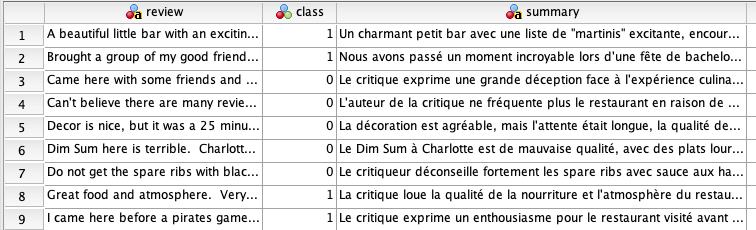
variable_nameis the input to code. It’ll take the value of one cell, e.g., “A beautiful little bar…” in the first row.promptcontrols the task. It’s what’s “asked” for OpenAI’s gpt-4o to do.additional_contextcan provide extra instructions (e.g., Respond in French)new_variableis where the information will be saved.
Then, what will be sent to the sentence completion API is:
You are a helpful assistant. Summarize the following review in one sentence.
Review:
A beautiful little bar with an exciting “martini” list – do step outside your comfort zone and try one of the crafted drinks.
Respond in French.
To which, for each row, the model will return something like:
Un charmant petit bar avec une liste de “martinis” excitante, encourageant à sortir de sa zone de confort pour essayer l’un des cocktails artisanaux.
and save it in the column summary.
2. Your API key (so OpenAI knows who to charge)
Replace YOUR_API_KEY with your own OpenAI API key (it should start with sk-).
3. Model settings
modelspecifies which GPT model to use. See list of models here.max_tokensis the number of maximum output tokens for GPT to generate (so it doesn’t return an essay). Rule of thumb: 1 token is .75 words.temperaturecontrols randomness and creativity.
Step 4: Run the syntax
Once you have made the necessary edits, go to Run > All in the SPSS Syntax Editor.
The script will loop over the values in the review variable, send each one to the OpenAI API, and create a new variable called summary that stores the output.
You will see progress printed to the output window. If successful, you will see in the output:
✅ GPT Coding completed.
Processed: [number] rows
Errors encountered: [number]
And then in your file a column added (here “summary”).
Important Notes
- SPSS must have Python 3 support enabled. Usually, that’s the case by default for SPSS 24+. See this guide.
- For a detailed explanation of how OpenAI pricing works and how to estimate your costs, see: Understanding OpenAI Pricing.
 questionableresearch.ai
Leave a comment